

AI video generator
Generate cinematic videos in just minutes
1
Select the motion effect
Decide how your image will move
2
Add image
Upload or generate an image to begin your animation
3
Get video
Click generate to produce your final animated video!
Kling 2.5 Turbo
Create short videos from a single image in Cleep AI—control motion with prompts, guide results with image conditioning, and validate timing and continuity before you export.
How it works
How do you generate a video with Kling 2.5 Turbo?
From a single image to a ready-to-post clip — no setup, no plugins, no Discord.
1Step 01
Upload an image and describe the motion
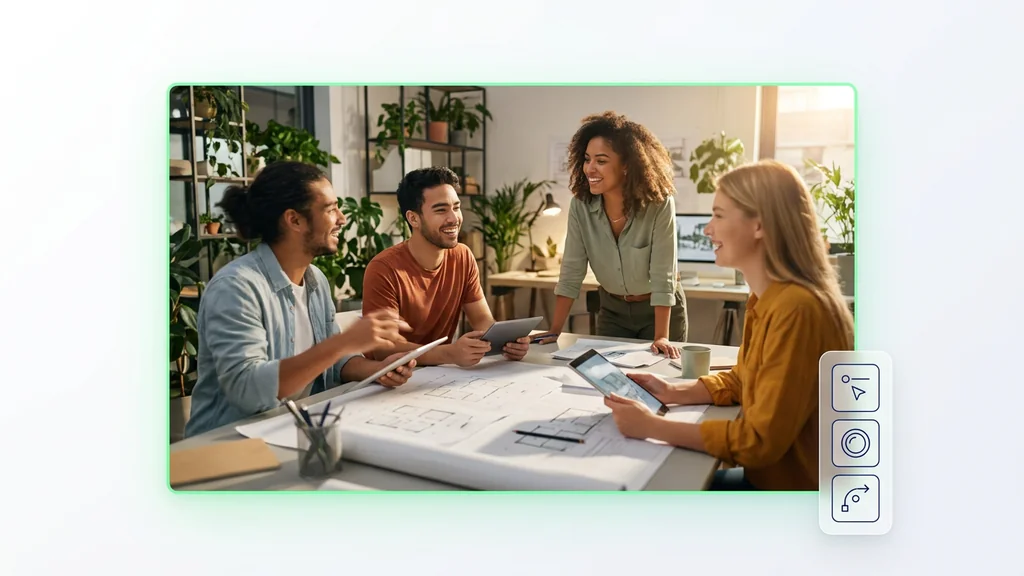
Add a clean source image, then write a short prompt for the camera move, subject action, and scene changes you want.
Write your prompt hereStudio shot of the product on a clean neutral background
2Step 02
Choose duration and aspect ratio
Pick your clip length and aspect ratio, and add image conditioning when the output needs to stay close to the original look.
DurationAspect ratio
8s
16:9
3Step 03
Generate and download
Click generate and wait a few minutes. Kling 2.5 Turbo creates your clip. Download it, or adjust the prompt and run a fast variant.
Generating…
What it can do
What can Kling 2.5 Turbo do?
How the image-to-video workflow runs in Cleep AI
Start by uploading a clean source image, then describe the motion you want (camera move, subject action, and scene changes) in a short prompt. Add image conditioning when you need the output to stay close to the original look—useful for brand assets, product shots, or character consistency. For more predictable pacing, pair the prompt with timing notes so the text-timing engine can guide when key actions should happen.
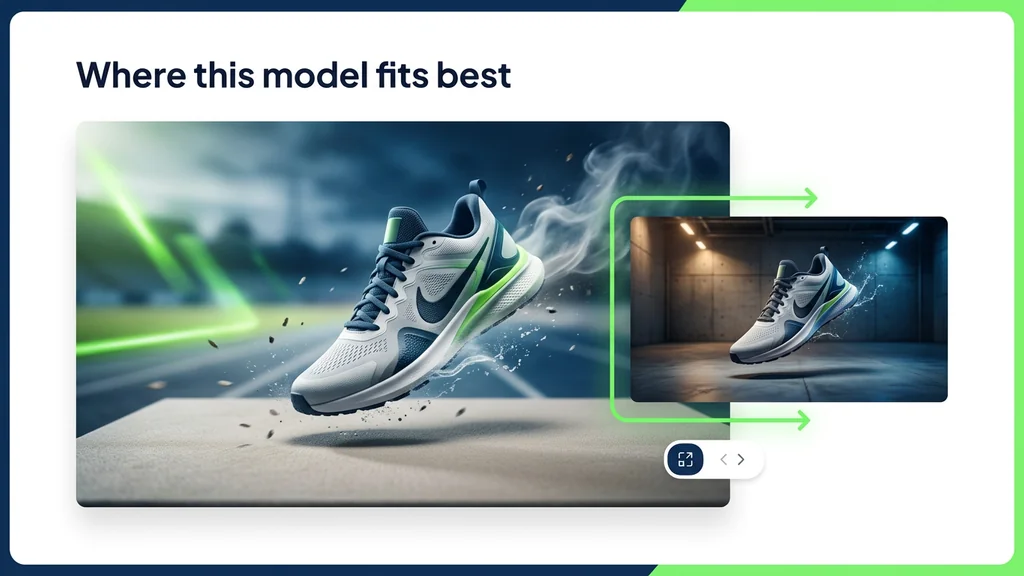
Where this model fits best
Marketing teams use it to animate product stills into short social clips without reshooting. Creators use it to turn concept art into motion tests, then iterate quickly by swapping the prompt while keeping the same source image. E-commerce teams can produce multiple variants from one hero image by changing camera direction, background motion, or lighting cues.
What to check before you export
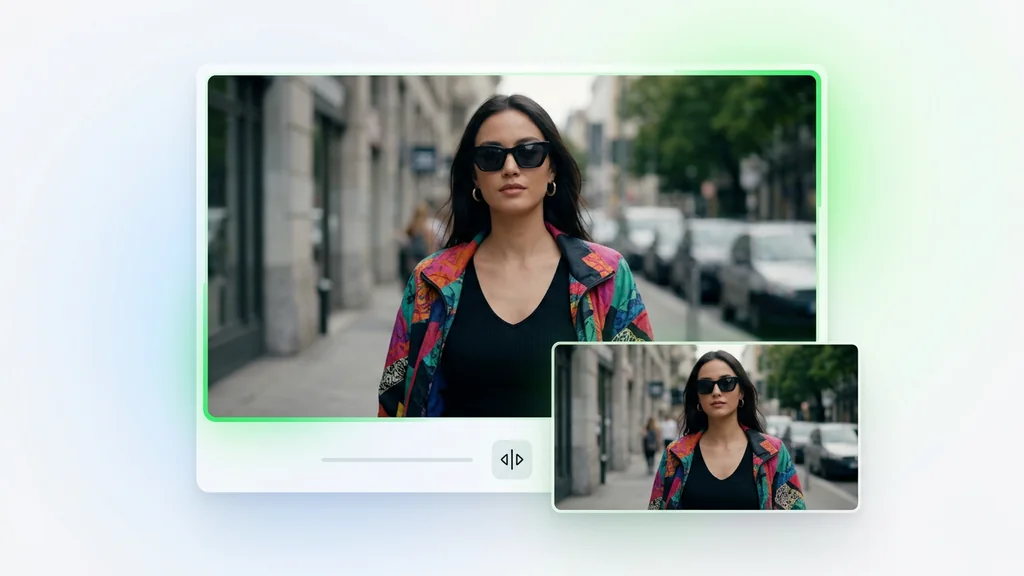
Review the generated clip for subject stability (hands, faces, logos) and for unwanted drift from the original composition—especially when you’re using strong motion prompts. Scrub the timeline to confirm the intended beats land where you described them, then re-run with tighter timing notes if actions happen too early or too late. If consistency matters, increase image conditioning and compare frames side-by-side to verify the look stays on-model.
Built for production
Cleep AI supports both hands-on generation and programmatic runs through the Playground API for repeatable workflows. For developers, the same configuration can be routed to the kling-video/v2.5-turbo/pro/image-to-video endpoint so teams can automate batches, variants, or scheduled renders. Keep prompts, conditioning settings, and timing notes consistent across runs to make outputs easier to compare and approve.
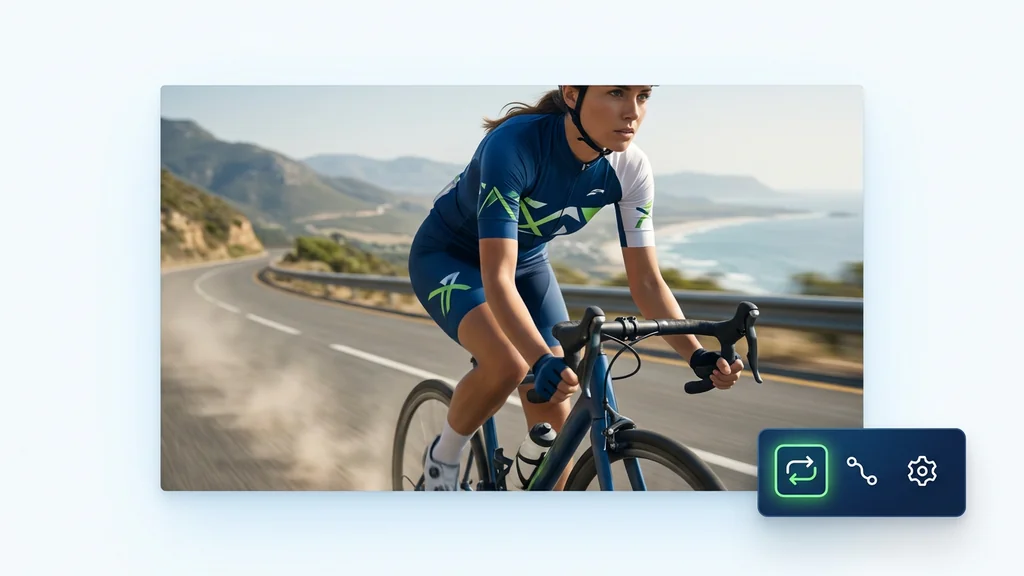
Generate your first clip in minutes
Upload one image, describe the motion, and run a first pass to see how the model interprets your scene. Then tighten results by adjusting conditioning strength and timing notes until the pacing and consistency match your brief. When it looks right, export and reuse the same settings for fast variants.
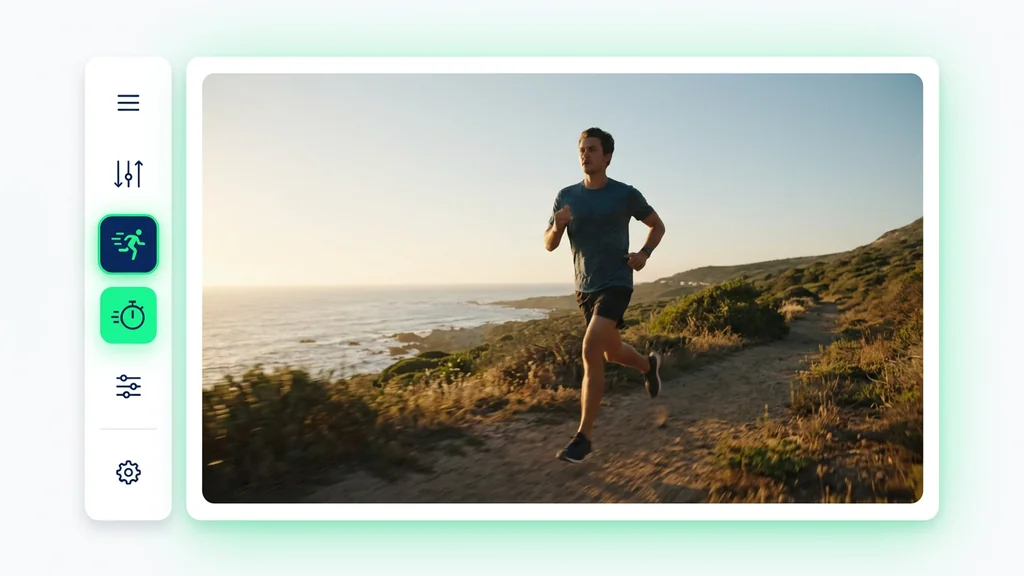
FAQ
What do people ask about Kling 2.5 Turbo?
It generates a short video sequence from a single source image, using your prompt to define motion and scene behavior. In Cleep AI, you can add image conditioning to keep the output closer to the original composition and style.